
Gazebo提供了多平臺的安裝和使用支持,大部分主流的linux,Mac以及Windows,這裏結合ROS以Ubuntu爲例進行介紹。
首先是參考資料:http://gazebosim.org/tutorials?cat=install
官方提供的安裝.sh文件解析(gazebo7_install.sh):
#!/bin/bash

# Copyright (C) 2012-2016 Open Source Robotics Foundation
# Licensed under the Apache License, Version 2.0 (the "License");
# you may not use this file except in compliance with the License.
# You may obtain a copy of the License at
#    http://www.apache.org/licenses/LICENSE-2.0
#
# Unless required by applicable law or agreed to in writing, software
# distributed under the License is distributed on an "AS IS" BASIS,
# WITHOUT WARRANTIES OR CONDITIONS OF ANY KIND, either express or implied.
# See the License for the specific language governing permissions and
# limitations under the License.

# Description:
# This script installs gazebo onto an Ubuntu system.

codename=`lsb_release -sc`

# Make sure we are running a valid Ubuntu distribution
case $codename in
  "trusty" | "utopic" | "vivid" | "wily")
  ;;
  *)
    echo "This script will only work on Ubuntu trusty, utopic, vivid, and wily"
    exit 0
esac

# Add the OSRF repository
if [ ! -e /etc/apt/sources.list.d/gazebo-latest.list ]; then
  sudo sh -c "echo \"deb http://packages.osrfoundation.org/gazebo/ubuntu ${codename} main\" > /etc/apt/sources.list.d/gazebo-latest.list"
fi

# Download the OSRF keys
has_key=`apt-key list | grep "OSRF deb-builder"`

echo "Downloading keys"
if [ -z "$has_key" ]; then
  wget --quiet http://packages.osrfoundation.org/gazebo.key -O - | sudo apt-key add -
fi


# Update apt
echo "Retrieving packages"
sudo apt-get update -qq
echo "OK"

# Install gazebo
echo "Installing Gazebo"
sudo apt-get install gazebo7 libgazebo7-dev

echo "Complete."
echo "Type gazebo to start the simulator."
首先,是檢查ubuntu的發行版本,符合"trusty" | "utopic" | "vivid" | "wily",符合的添加軟件源和密匙;
然後,使用sudo apt-get update更新,完成後顯示ok;
最後,使用sudo apt-get install gazebo7 libgazebo7-dev,完成全部安裝。
對於ROS Kinetic比較簡單直接使用:
~$ sudo apt-get install ros-kinetic-gazebo*可以安裝相對應的功能包。
~$ sudo apt-get install gazebo7 libgazebo7這樣就可以完成gazebo7的安裝。
完成後,在終端輸入gazebo,就可以啓動。
~$ gazebo

注意,模型加載,由於網絡問題會出現這樣錯誤和警告,請離線下載gazebo模型,放在home文件夾.gazebo/model下。
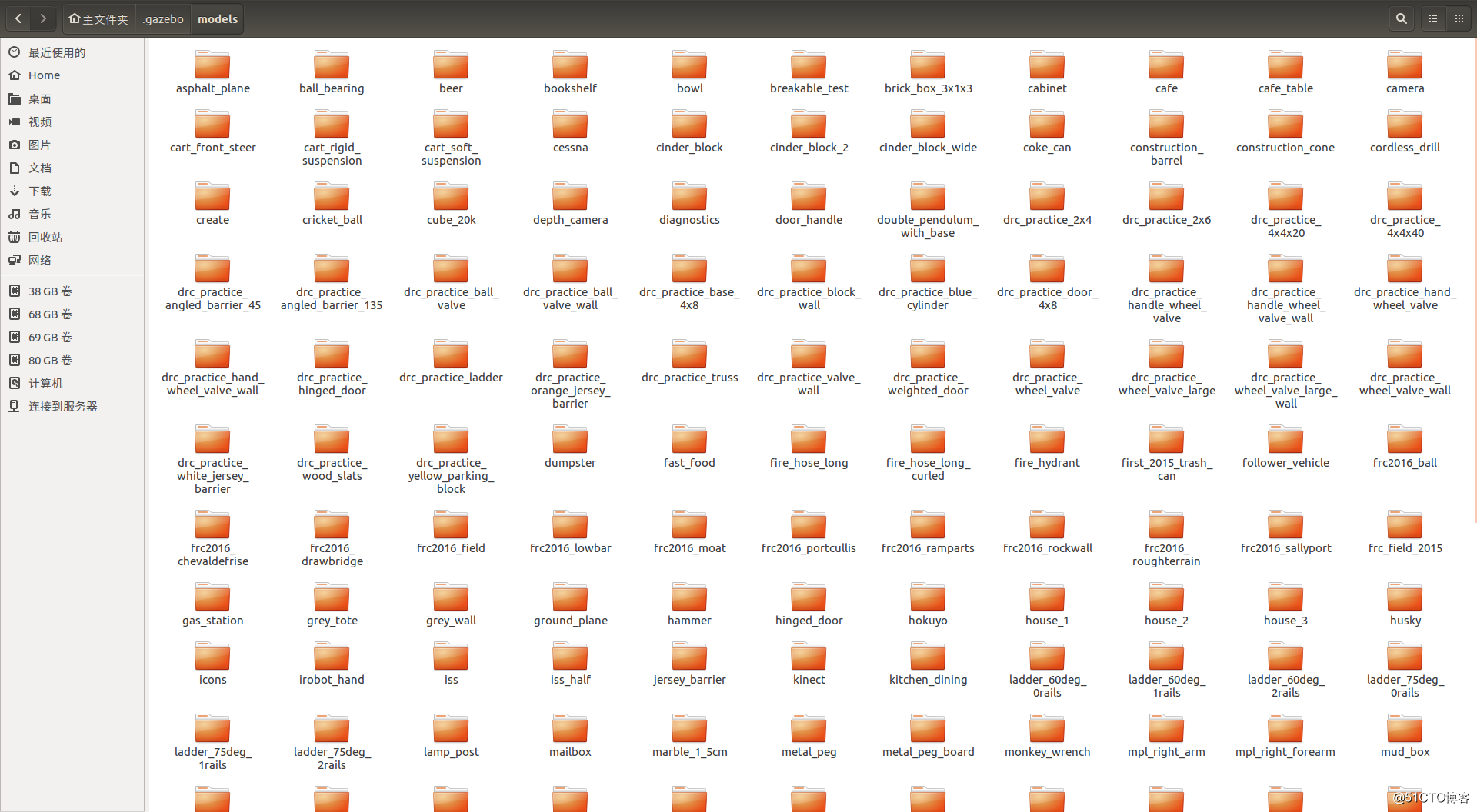

完成安裝後,就可以在界面上探索Gazebo7的基本操作。
附錄以下內容轉載自官方指南:
Intro
Welcome to the Beginner Module! This module will guide you through the mostbasic features of Gazebo. We will build a simple vehicle to demonstrate thesefeatures.
Each tutorial builds upon the last, so we recommend following the tutorials in order.
These tutorials are intended for those new to Gazebo and/or folks with no programming or Linux experience.
What is Gazebo?Gazebo is a 3D dynamic simulator with the ability to accurately andefficiently simulate populations of robots in complex indoor and outdoorenvironments. While similar to game engines, Gazebo offers physicssimulation at a much higher degree of fidelity, a suite of sensors, andinterfaces for both users and programs.
Typical uses of Gazebo include:
testing robotics algorithms,
designing robots,
performing regression testing with realistic scenarios
A few key features of Gazebo include:
multiple physics engines,
a rich library of robot models and environments,
a wide variety of sensors,
convenient programmatic and graphical interfaces
Gazebo is currently best used on Ubuntu, a flavor of Linux. You will need a computer that has:
- A dedicated GPU,
- Nvidia cards tend to work well in Ubuntu
- A CPU that is at least an Intel I5, or equivalent,
- At least 500MB of free disk space,
- Ubuntu Trusty or later installed.
If you run into problems during the install, please see the complete install instructions.
Download the installer. If a window opens, you can close it again.
-
Copy the following text by pressing Ctrl-C:
chmod +x ~/Downloads/gazebo7_install.sh -
Press Alt-F2
- A window with a prompt should appear in the upper left
-
Press Ctrl-V to paste the text, and press Enter
- The window will disappear
-
Copy the following by pressing Ctrl-C:
gnome-terminal --working-directory="~" -e "./Downloads/gazebo7_install.sh" -
Press Alt-F2
- A window with a prompt should appear in the upper left
-
Press Ctrl-V to paste the text, and press Enter
- A new window will appear with a password prompt.
Enter your password, and press Enter
If prompted, press Y to continue
Wait until the window disappears
- Press Alt-F2
- Type "gazebo", and press Enter.
更多文章请关注《万象专栏》
转载请注明出处:https://www.wanxiangsucai.com/read/cv11615